


Pokémon Go’s Explorer Gadget is a digital tool that can catch Pokémon and spin PokéStops while you are not actively playing. It has started rolling out globally, but its features and limits may still change.

The gadget is currently being tested, and players have reported differences between versions. Some players have seen different behaviour, so the details below describe the functionality known during the global test release.
For more gaming and industry updates, browse RETROCADE’s arcade blog while you wait for further information about the feature.
What does the Explorer Gadget do?
The Explorer Gadget performs a similar job to physical accessories such as Pokémon Go Plus+ and Poké Ball Plus. It can automatically attempt to catch nearby Pokémon and spin PokéStops without requiring constant interaction with the app.

Important differences from physical auto-catchers
- Daily limits apply. The gadget restricts the number of Pokémon it can catch and PokéStops it can spin each day. These limits appear to vary during testing; player reports suggest the numbers are not consistent.
- The game may need to be minimised or closed. There is still disagreement about whether the feature works fully in the background or requires the app to be closed. Testing on an iPhone showed it working in the background without force-closing the game.
- Only Poké Balls are used. Unlike the Go Plus+, the Explorer Gadget cannot use other types of Poké Ball.
- There are no live notifications. The gadget does not alert you each time it catches a Pokémon or spins a PokéStop.
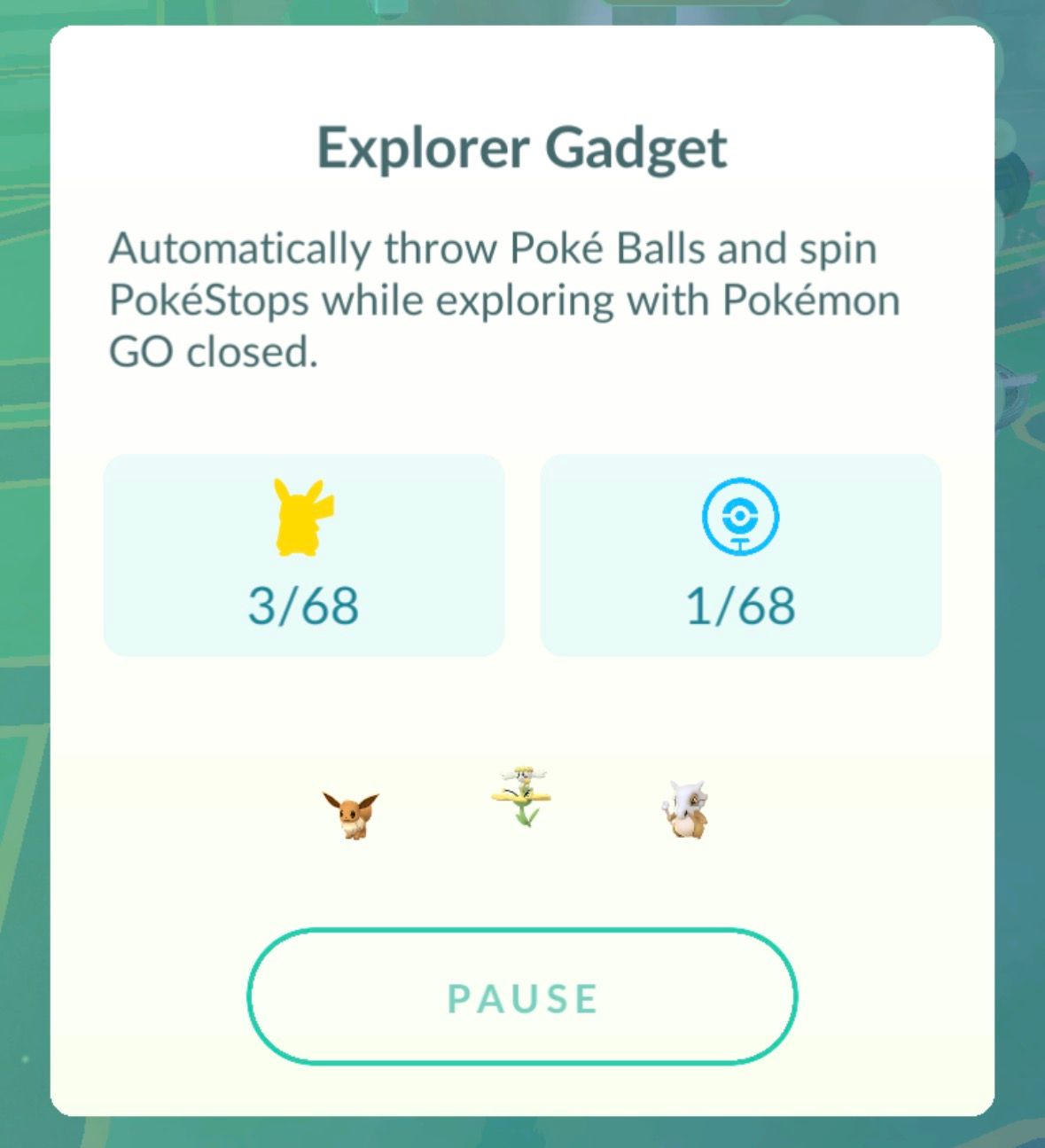
To use it, activate the Explorer Gadget, then minimise the app and leave it running. When you return, select the gadget icon on the right-hand side of the screen. It appears in the same column as Lucky Eggs and other active bonuses. This screen shows recent activity and progress towards the daily limits, and it also lets you pause the gadget.
As with physical auto-catchers, an attempt can fail. Open your character menu and choose Journal to review recent catches, PokéStop spins and unsuccessful catch attempts.
If you enjoy hands-on gaming hardware as well as mobile games, RETROCADE’s arcade machines and compact bartop arcades offer another way to build a dedicated gaming setup.
Using the Explorer Gadget with a physical accessory
You cannot use a physical catcher and the Explorer Gadget at the same time. Once you finish using the digital tool, reconnect your accessory through the relevant settings menu.
- Open the in-game settings by tapping the gear icon in the top-right corner of the menu.
- Select Connected Devices and Services.
- Choose Accessory Devices.
- Tap your physical device to reconnect it.

Is the Explorer Gadget fully released?
Not yet. Although the feature has begun a global rollout, it still appears to be in a testing phase. There has been no formal announcement from Scopely Explore confirming the final design, functionality or limits.
That means the way the Explorer Gadget handles background activity, daily allowances and accessory connections may change. Players should treat the current version as provisional rather than a finished feature.
For advice on choosing dedicated gaming hardware for your home, RETROCADE’s arcade machine buying guide covers the key decisions before you buy.
Explorer Gadget: quick summary
- It automatically attempts Pokémon catches and PokéStop spins.
- It has daily catch and spin limits that may vary during testing.
- It only uses standard Poké Balls.
- It does not provide individual catch or spin notifications.
- It cannot run alongside a connected physical catcher.
- Its final features and release details have not been confirmed.


Leave a Reply